Saturday, 16 August 2014
The Next Gen Free E Book Distribution
The Next Gen Free E Book Distribution: ebookacid.weebly.com brings you Latest ebooks from the fields of programming, personality development, learning foreign language and also hub for the people loving Novels, science friction etc..

Thursday, 7 August 2014
100 sites for your entertainment................
1. screenr.com – record movies of your desktop and send them straight to YouTube.
2. ctrlq.org/screenshots – for capturing screenshots of web pages on mobile and desktops.
3. goo.gl – shorten long URLs and convert URLs into QR codes.
4. unfurlr.com – find the original URL that's hiding behind a short URL.
5. qClock – find the local time of a city using a Google Map.
6. copypastecharacter.com – copy special characters that aren't on your keyboard.
7. postpost.com – a better search engine for twitter.
8. lovelycharts.com – create flowcharts, network diagrams, sitemaps, etc.
9. iconfinder.com – the best place to find icons of all sizes.
10. office.com – download templates, clipart and images for your Office documents.
11. followupthen.com – the easiest way to setup email reminders.
12. jotti.org – scan any suspicious file or email attachment for viruses.
13. wolframalpha.com – gets answers directly without searching - see more wolfram tips.
14. printwhatyoulike.com – print web pages without the clutter.
15. joliprint.com – reformats news articles and blog content as a newspaper.
16. ctrql.org/rss – a search engine for RSS feeds.
17. e.ggtimer.com – a simple online timer for your daily needs.
18. coralcdn.org – if a site is down due to heavy traffic, try accessing it through coral CDN.
19. random.org – pick random numbers, flip coins, and more.
20. pdfescape.com – lets you can quickly edit PDFs in the browser itself.
21. viewer.zoho.com – Preview PDFs and Presentations directly in the browser.
22. tubemogul.com – simultaneously upload videos to YouTube and other video sites.
23. dabbleboard.com – your virtual whiteboard.
24. scr.im – share you email address online without worrying about spam.
25. spypig.com – now get read receipts for your email.
26. sizeasy.com – visualize and compare the size of any product.27. myfonts.com/WhatTheFont – quickly determine the font name from an image.
28. google.com/webfonts – a good collection of open source fonts.
29. regex.info – find data hidden in your photographs – see more EXIF tools.
30. livestream.com – broadcast events live over the web, including your desktop screen.
31. iwantmyname.com – helps you search domains across all TLDs.
32. homestyler.com – design from scratch or re-model your home in 3d.
33. join.me – share you screen with anyone over the web.
34. onlineocr.net – recognize text from scanned PDFs - see other OCR tools.
35. flightstats.com - Track flight status at airports worldwide.
36. wetransfer.com – for sharing really big files online.
37. hundredzeros.com – best-sellers on all subjects that you can download for free.
38. polishmywriting.com – check your writing for spelling or grammatical errors.
39. marker.to – easily highlight the important parts of a web page for sharing.
40. typewith.me – work on the same document with multiple people.
41. whichdateworks.com – planning an event? find a date that works for all.
42. everytimezone.com – a less confusing view of the world time zones.
43. gtmetrix.com – the perfect tool for measuring your site performance online.
44. noteflight.com – print music sheets, write your own music online (review).
45. imo.im - chat with your buddies on Skype, Facebook, Google Talk, etc. from one place.
46. translate.google.com – translate web pages, PDFs and Office documents.
47. kleki.com – create paintings and sketches with a wide variety of brushes.
48. similarsites.com – discover new sites that are similar to what you like already.
49. wordle.net – quick summarize long pieces of text with tag clouds.
50. bubbl.us – create mind-maps, brainstorm ideas in the browser.
51. kuler.adobe.com – get color ideas, also extract colors from photographs.
52. liveshare.com – share your photos in an album instantly.
53. lmgtfy.com – when your friends are too lazy to use Google on their own.
54. midomi.com – when you need to find the name of a song.
55. bing.com/images – automatically find perfectly-sized wallpapers for mobiles.56. faxzero.com – send an online fax for free – see more fax services.
57. feedmyinbox.com – get RSS feeds as an email newsletter.
58. ge.tt – quickly send a file to someone, they can even preview it before downloading.
59. pipebytes.com – transfer files of any size without uploading to a third-party server.
60. tinychat.com – setup a private chat room in micro-seconds.
61. privnote.com – create text notes that will self-destruct after being read.
62. boxoh.com – track the status of any shipment on Google Maps – alternative.
63. chipin.com – when you need to raise funds online for an event or a cause.
64. downforeveryoneorjustme.com – find if your favorite website is offline or not?
65. ewhois.com – find the other websites of a person with reverse Analytics lookup.
66. whoishostingthis.com – find the web host of any website.
67. google.com/history – found something on Google but can't remember it now?
68. aviary.com/myna – an online audio editor that lets record, and remix audio clips online.
69. disposablewebpage.com – create a temporary web page that self-destruct.
70. urbandictionary.com – find definitions of slangs and informal words.
71. seatguru.com – consult this site before choosing a seat for your next flight.
72. sxc.hu – download stock images absolutely free.
73. zoom.it – view very high-resolution images in your browser without scrolling.
74. scribblemaps.com – quickly create custom Google Maps online.
75. alertful.com – quickly setup email reminders for important events.
76. picmonkey.com – Picnik is offline but PicMonkey is an even better image editor.
77. formspring.me – you can ask or answer personal questions here.
78. sumopaint.com – an excellent layer-based online image editor.
79. snopes.com – find if that email offer you received is real or just another scam.
80. typingweb.com – master touch-typing with these practice sessions.
81. mailvu.com – send video emails to anyone using your web cam.
82. timerime.com – create timelines with audio, video and images.
83. stupeflix.com – make a movie out of your images, audio and video clips.
84. safeweb.norton.com – check the trust level of any website.
85. teuxdeux.com – a beautiful to-do app that looks like your paper dairy.
86. deadurl.com – you'll need this when your bookmarked web pages are deleted.87. minutes.io – quickly capture effective notes during meetings.
88. youtube.com/leanback – Watch YouTube channels in TV mode.
89. youtube.com/disco – quickly create a video playlist of your favorite artist.
90. talltweets.com – Send tweets longer than 140 characters.
91. pancake.io – create a free and simple website using your Dropbox account.
92. builtwith.com – find the technology stack of any website.
93. woorank.com – research a website from the SEO perspective.
94. mixlr.com – broadcast live audio over the web.
95. radbox.me – bookmark online videos and watch them later (review).
96. tagmydoc.com – add QR codes to your documents and presentations (review).
97. notes.io – the easiest way to write short text notes in the browser.
98. ctrlq.org/html-mail – send rich-text mails to anyone, anonymously.
99. fiverr.com – hire people to do little things for $5.
100. otixo.com – easily manage your online files on Dropbox, Google Docs, etc.
101.ifttt.com – create a connection between all your online accounts.
Friday, 1 August 2014
8 Things You Need to Know About Windows 8.1 Update

When it came to updating its struggling Windows 8 operating system, Microsoft took the mantra "change is bad, unless it's great." At least that's what Windows Principal Program Manager Chaitanya Sareen told me in a meeting last week. Microsoft's launch of Windows 8.1 Update (read the full review!) at the Build conference in San Francisco seems centered on this philosophy—there are no huge changes to the baseline features of Windows 8.1, but every difference in Update is designed to please rather than surprise the world's 1.5 billion Windows users.
Sareen noted that 40 percent of PCs for sale now are touch-enabled, and the level of customer satisfaction among touch-capable device Windows 8.1 users was actually higher than for any previous Windows version, including Windows 7. But that still leaves a whole lot of machines out there that still rely solely on mouse and keyboard for user interaction, and they have been less than thrilled, by most accounts.
Users of those non-touch systems have in fact voiced the loudest complaints about Microsoft's two-in-one OS. This Windows 8.1 Update is primarily intended for them and their needs. That's not to say that touch PCs are completely ignored in the Update. Sareen told me that Windows engineers have incorporated about 200 performance increases for the new touch devices, including reducing its disk footprint.
 It's
It'ssometimes hard to remember that Windows 8 has only been available for a year and half, and in that short space has taken three significantly different forms—Windows 8, Windows 8.1, and now Windows 8.1 Update. This revision is a result of the product team behind the operating system's listening to the feedback from users: Sareen made a point of emphasizing that and that the primary motivation behind this Update is to address the feedback from mouse pushers and clickers, in particular.If you run Windows 8.1 on a desktop or laptop, you'll no doubt discover more new behaviors: There's quite a bit more to the update than what's listed below. For a fuller account, see my review of Windows 8.1 Update. In the meantime, the list and descriptions below should give you a handle on the major new developments in this release.

1. It Happens Automatically, and it's Free
This time around, there are absolutely zero hoops to jump through to get the latest version of Windows. Starting April 8, Windows 8.1 PCs will be automatically updated through Windows Update. No going to the Windows Store or downloading and running anything. Though this delivery method makes the new version sound like it's just a Service Pack, as you'll see from below, there are definite user features. As the lack of even a point version update indicates, however, it's really mostly improving features already in Windows 8.1. But don't take that to mean that it's a small update: It weighs in at over half a gigabyte. Windows 8 users who never updated to 8.1 can get the update, too, but only through the Windows Store.
2. Boot to Desktop
This much-requested feature was available in Windows 8.1, but Update now makes it the law of the land—for laptops and desktops, at least. The OS now detects whether it's running on a traditional PC with a mouse and keyboard, and, if so, it boots to the desktop. If you're running Windows 8 on a tablet or slate, however, the Start screen remains your initial view of Windows. This stratagem makes a lot of sense, as it will give a level of familiarity to longtime Windows users. Of course you can change this behavior in settings if you're on a desktop and still prefer the Start screen. Personally, however, I don't have a problem with the Start screen on my desktop. I simply view it as a full-screen Start button menu, and am quickly off and running with either desktop or modern apps after a tap.
This much-requested feature was available in Windows 8.1, but Update now makes it the law of the land—for laptops and desktops, at least. The OS now detects whether it's running on a traditional PC with a mouse and keyboard, and, if so, it boots to the desktop. If you're running Windows 8 on a tablet or slate, however, the Start screen remains your initial view of Windows. This stratagem makes a lot of sense, as it will give a level of familiarity to longtime Windows users. Of course you can change this behavior in settings if you're on a desktop and still prefer the Start screen. Personally, however, I don't have a problem with the Start screen on my desktop. I simply view it as a full-screen Start button menu, and am quickly off and running with either desktop or modern apps after a tap.
3. Power and Search Buttons on Start
Yes, you could always (and still can) just start typing at the Start screen to search for apps, but with Windows 8.1 Update, a clear button at top clues you in to this. Another much-missed button was the Power button. Windows 8's architects figured most people just close the lid or let their PCs sleep rather than often powering down. Users told them otherwise, and they listened. The Start screen is now graced with the universal power button symbol for easy access to shut down. No longer is the option hidden deep in a settings menu.
Yes, you could always (and still can) just start typing at the Start screen to search for apps, but with Windows 8.1 Update, a clear button at top clues you in to this. Another much-missed button was the Power button. Windows 8's architects figured most people just close the lid or let their PCs sleep rather than often powering down. Users told them otherwise, and they listened. The Start screen is now graced with the universal power button symbol for easy access to shut down. No longer is the option hidden deep in a settings menu.

4. Smart Mouse Tweaks
A lot of what's new in Windows 8.1 may be so subtle that you may not notice it explicitly, yet you get a sense that things just work more smoothly. A key example of this is what happens when you place the mouse in the corners of your screen. A basic tenet of the Windows 8 interface is "edges for touch screens and corners for the mouse cursor." These are the actions that get you to the basic Windows menus and window switching.
A lot of what's new in Windows 8.1 may be so subtle that you may not notice it explicitly, yet you get a sense that things just work more smoothly. A key example of this is what happens when you place the mouse in the corners of your screen. A basic tenet of the Windows 8 interface is "edges for touch screens and corners for the mouse cursor." These are the actions that get you to the basic Windows menus and window switching.
With the 8.1 Update, the mouse side of these actions gets smarter: Now you won't open the Charms menu if all you want to do is hit the X in a program's top-right corner. And on the other side, moving the mouse to the top left corner just to get to your browser's Back button doesn't annoyingly show the running apps thumbnails; you have to hesitate at the screen corner with the mouse cursor.
5. Modern Apps on the Taskbar

This one is potentially more controversial among the diehard, longtime Windows users, as it actually brings modern, tablet-centric Windows Store apps into the desktop fold. In fact, the Store app itself is now pinned to the taskbar by default—which makes a lot of sense with all those machines that will now boot to the desktop view. You can also now pin any store app to the desktop taskbar. This one certainly won't make happy those curmudgeons who want the modern interface to go away, but it's a step towards integrating Windows 8.1's two modes into a more coherent whole. And users who really don't want it can disable the capability in the Taskbar properties dialog. A related new Taskbar feature is that that tool will now appear when a desktop or laptop user moves the cursor to the bottom of the screen—even when in a modern app.
This one is potentially more controversial among the diehard, longtime Windows users, as it actually brings modern, tablet-centric Windows Store apps into the desktop fold. In fact, the Store app itself is now pinned to the taskbar by default—which makes a lot of sense with all those machines that will now boot to the desktop view. You can also now pin any store app to the desktop taskbar. This one certainly won't make happy those curmudgeons who want the modern interface to go away, but it's a step towards integrating Windows 8.1's two modes into a more coherent whole. And users who really don't want it can disable the capability in the Taskbar properties dialog. A related new Taskbar feature is that that tool will now appear when a desktop or laptop user moves the cursor to the bottom of the screen—even when in a modern app.

6. Desktop Clicks Don't Open Modern Apps
A lot of people were put off by Windows 8's opening photos in the (at the time) fairly useless Photos modern app. The app has since gotten a lot more photo-editing power, but it can still be jarring to be in the desktop File Explorer and double click to launch a touch-style app. That behavior is no longer the default: Instead, you'll see your file in the appropriate desktop app instead. On the other side of this equation, touch apps themselves get more user friendly for mouse users—now right-clicking on a Start screen tile opens a familiar context menu rather than the new-style bars at top and bottom of the screen.
A lot of people were put off by Windows 8's opening photos in the (at the time) fairly useless Photos modern app. The app has since gotten a lot more photo-editing power, but it can still be jarring to be in the desktop File Explorer and double click to launch a touch-style app. That behavior is no longer the default: Instead, you'll see your file in the appropriate desktop app instead. On the other side of this equation, touch apps themselves get more user friendly for mouse users—now right-clicking on a Start screen tile opens a familiar context menu rather than the new-style bars at top and bottom of the screen.
7. Title Bars for Store Apps
Another tweak in the update also brings more harmony between modern apps and desktop users. When you start a modern app, you'll now see a title bar along the top of the window. Moving the mouse cursor to the top of the screen and this bar reappears; from it, you can use the time-honored minimize and close buttons—complete with animations that let you know what's going on.
Another tweak in the update also brings more harmony between modern apps and desktop users. When you start a modern app, you'll now see a title bar along the top of the window. Moving the mouse cursor to the top of the screen and this bar reappears; from it, you can use the time-honored minimize and close buttons—complete with animations that let you know what's going on.

8. Newly Installed Apps are More Obvious
Starting with Windows 8.1, newly installed apps no longer get tiles on your ever-lengthening main Start screen, being added instead to the All Apps section below it. They still go there, but now the down arrow that takes you to the All Apps list shows a very obvious New Apps with a number indicated many new apps you've installed. The All Apps screen now features denser icons that are friendlier for mouse users.
Starting with Windows 8.1, newly installed apps no longer get tiles on your ever-lengthening main Start screen, being added instead to the All Apps section below it. They still go there, but now the down arrow that takes you to the All Apps list shows a very obvious New Apps with a number indicated many new apps you've installed. The All Apps screen now features denser icons that are friendlier for mouse users.
Flexible phone by LG,but too expensive!

Summary
Pros
- Decent processor
- Interesting tech packed-in
- Detailed daylight photos
Cons
- Seriously expensive
- Serious screen quality issues
- Some camera focus problems
Review Price £649.99
Key Features: 6-inch flexible plastic OLED display; Self-healing rear; 13-megapixel camera Manufacturer: LG
What is the LG G Flex?
The LG G Flex is not a normal phone. It’s not here to square up to mobiles like the Samsung Galaxy S5. It is here to prove a point, to prove that certain things can be done. It is a curved phone with a self-healing back. It’s a mutant, a weirdo – a proof of concept, if not quite a statement of intent for the rest of LG's 2014 phones.As a demo of new technologies it’s interesting. However, as a phone you’ll have to pay more than £500 for, it’s a no-go

LG G Flex: Design and the Curve
The LG G Flex’s curved screen is its spotlight-stealing feature. However, its sheer size is also worth noticing. This is a 6-inch phone, sitting in the awkward middle ground between a phone and a tablet.It’s 81mm wide, making it feel gigantic even when compared with big 5-inch phones like the . Despite having a skinny bezel, reaching from one end of the screen to the other will be either tricky or impossible – depending on how big your digits are.

This is a plastic phone, pretty predictable given its bendy design, and the faux-metal glossy plastic finish doesn’t give you the surest grip either. The LG G Flex demands a degree of caution.
Its initial appearance even takes some getting used to. This is the first curved phone to get a general release, and that it doesn’t sit flat seems deeply odd at first. Some will say it looks broken, others that it looks weird or ridiculous. But there’s no chance of a measured, neutral reaction when it comes to the LG G Flex. It’s an attention-grabber.
There are two main questions the curve raises – how, and why? We’re going to try and answer both.

How did LG make a curved phone?
There are several elements that allow the LG G Flex to have a curvy screen. The most talked-about is the relatively new sort of screen it uses.The LG G Flex has a P-OLED screen. The core OLED display tech is comparable to the OLED you see in phones like the Galaxy S4. It uses pixels that emit their own light, meaning there’s no need for side-firing backlight LEDs – which probably wouldn’t work too well on a curvy screen.
However, the core difference is that while most OLEDs have a glass backing or substrate - as is the more technical term - the G Flex’s is plastic. And plastic is bendy.
A few other bits have to be curved and flexible too – the battery and the top layer of the screen. The G Flex has what LG claims to be the world’s first curved battery. You can’t pop off the back of the phone to have a look, but the battery curves around the frame to fill any empty space. LG’s battery bods have worked on a new internal structure for the battery that makes all this possible. Clever stuff.

The last bit of curvy cleverness is down to Corning, not LG. It makes the curved plate of Gorilla Glass that covers the phone’s top layer. Yes, this is bendy, flexible glass.
It works more as a showcase of quite how great Corning’s work into toughened glass is. Standard Gorilla Glass can withstand being bent out of shape without shattering, but with a ‘straight’ phone this is never shown off. Gorilla Glass is used in a great many phones, often without Corning getting much credit or recognition.
The combination of a plastic OLED screen, the curvy battery and curved Gorilla Glass let the G Flex keep its curve. And the phone can be pressed flat without any damage. You can do it with your hands - no clamps needed here.
Repeated flexing of the display reportedly causes two dots to appear on the display – the result of internal components press against the panel. However, LG has recognised the issue and says it should fade without lasting damage.
We’ve flexed the phone liberally a half-dozen times or so and had no such issues, though.

Why is the G Flex cuved?
A curvy screen has won the LG G Flex a bunch of attention. But the most common question it raises is – why? LG offers a bunch of different reasons.Its curved display has a slight IMAX-like effect – where the screen’s bend matches the curvature of your field of view to an extent. Held about 30cm from your face, the screen does offer pretty great coverage of your vision compared with a (relatively) tiny iPhone 5S, or even the Galaxy S4.
However, it’s predominantly the screen size that makes the G Flex a phone we can imagine watching a film on, not its curvy style

Argument number two is about your bum. LG says the G Flex can be sat on without damage, and it’s no lie. Put in in your back pocket and you won’t have to worry about shattering the display. However, this is for peace of mind purposes only. It is not comfortable to sit on.
Argument three is about screen reflections, and this one does hold up better. The G Flex’s display is as reflective as any top-end phone (i.e. quite reflective), however the curve means that a good portion of the screen is reflecting nothing more than a slightly distorted version of your face. Unless there’s a light source directly behind you, it shouldn’t pose a serious problem. It doesn’t solve the screen reflection issue, but does make it easier to deal with.

The real reason why the curve of the G Flex is important, though, is that it acts as a declaration that LG is a leader in innovative mobile technologies. It doesn’t want to be seen as a small player anymore.
Its release is also a response to the Samsung Galaxy Round, to some extent. This rival is a curved but non-flexible AMOLED phone, but you won’t find it on shelves in the UK. The LG G Flex is a curved and flexible phone that you can actually buy. LG has gone a few steps further.
Top 15 best selling smartphones for May 2014

We round up the top 15 best selling devices for this month that bring powerful performance and friendly price tag on board
The fierce competition in the mobile phone market has forced the manufacturers to come out with new and and better specced models from time to time.If you are planning to buy a new smartphone this month, check out our collection of top 15 smartphones that make the cut.
- Lenovo Vibe X

Price: Rs 19,999
- Lenovo Vibe Z

Price: Rs 30,349
- Xolo Q1000 Opus
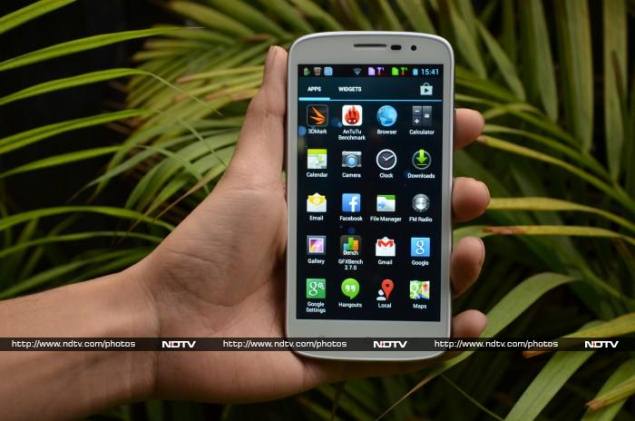
Price: Rs 8,065
- Moto E

Price: Rs 6,999
- LG L70 Dual
-

Price: Rs 13,420
- Nokia X Dual

Price: Rs 7,200
- Moto G
- Moto G
- Moto G

Price: 12,499
- Lenovo S660

Price: 12,999
- Xolo Q1010i

Price: 13,099
- LG L90 Dual
-

Price: 16,730
- BlackBerry Z10
-

Price: 17,990
- Micromax Canvas 5
-

Price: Rs 19,999
- Sony Xperia M2 Dual
-

Price: 20,999
- Gionee Elife E6
-

Price: 21,200
- Apple iPhone 4S
-

Price: Rs 22,695 (for 8GB Model)
Wednesday, 16 July 2014
Samsung ATIV Book 9

Based on the way most laptops sound, I’d venture a guess that audio is the last thing engineers think about when they design laptops. In fact, I’d go one step further to speculate that marketing efforts drive most laptop builders’ decisions to collaborate with audio companies. But I won’t lump Samsung’s 2014 ATIV Book 9 in that crowd, because it sounds absolutely divine—especially with headphones.
The Samsung ATIV Book 9 is a beautiful, elegantly thin laptop that will turn heads when you pull it out of your designer messenger bag. It’s the thinnest, sexiest notebook we’ve reviewed this year. But it’s much more pedestrian under the hood—with one exception. It’s equipped with a Wolfson WM5102 audio CODEC (encoder/decoder). If you’re an audio enthusiast, your ears just pricked up. Wolfson produces some of the world’s finest DACs (digital-to-analog converters).
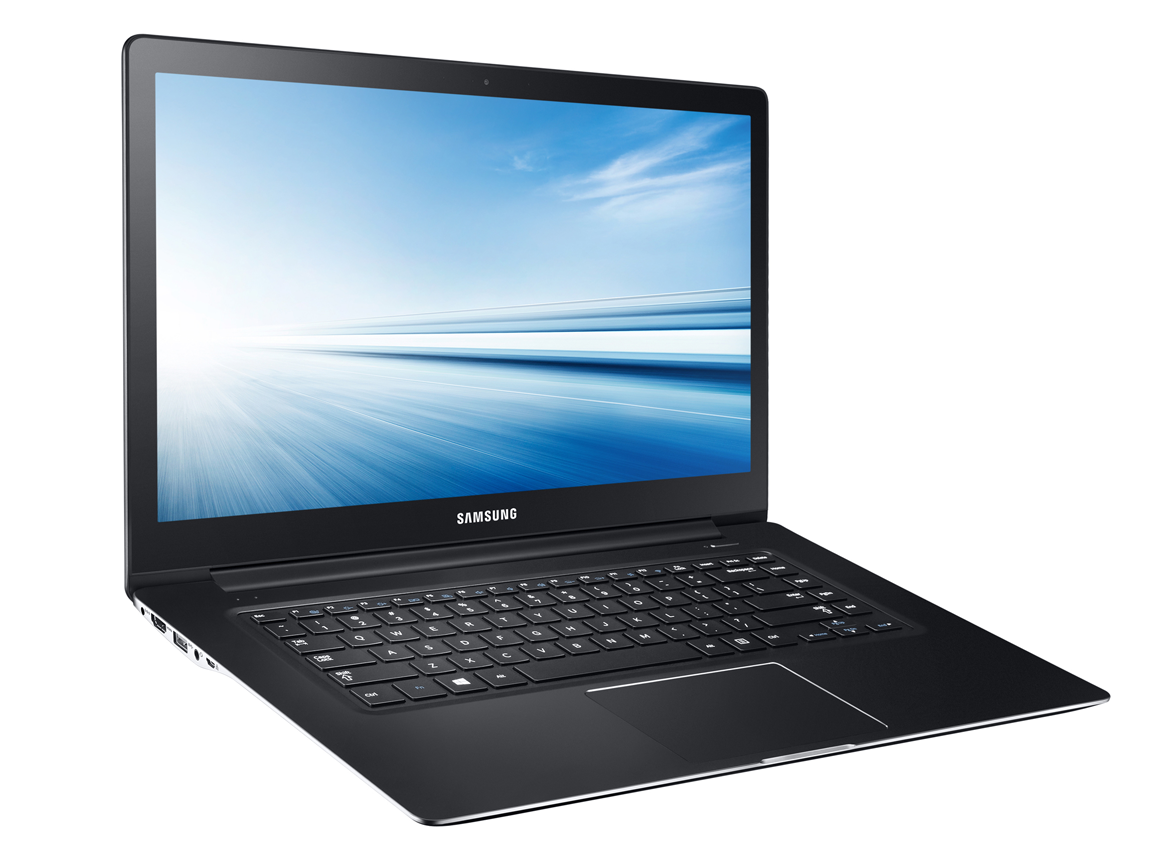
But it’s not entirely accurate to describe the ATIV Book 9 as being equipped with a Wolfson DAC. I don't mean to split hairs, but that description might lead you to think that this laptop is equipped with the same type of audio subsystem found in high-end outboard DACs such as the Channel Islands Transient MKII or the Lindeman USB-DAC 24/192. Wolfson’s WM5102 was designed for smartphones. It does have a DAC, but this one chip also integrates a host of other functions that are handled by discrete processors in top-shelf audio gear like the components I just mentioned.
Now before Samsung gets its panties in a bunch, let me say that the ATIV Book 9 is by far the best-sounding laptop I’ve ever listened to. The DAC inside the WM5102 can convert audio tracks with up to 24-bit resolution and sample rates up to 192kHz and deliver them to its headphone jack at an exceptionally high signal-to-noise ratio of 113dB (this according to Wolfson’s data sheet). I don’t have the measurement gear to verify that claim, but I can tell you that my ears definitely enjoyed the experience (aided by a pair of JH Audio JH-13 Pro earbuds).
I automatically installed Foobar2000 (free, donations accepted) on the ATIV Book 9, because I’ve never encountered a fresh-from-the-factory Windows computer than could handle FLAC files (especially not the 24-bit/48kHz tracks I’ve purchased from the Bowers & Wilkins Society of Sound music service over the years).

But then I found ArcSoft's S Player+ on the ATIV Book 9. This audio/video player is exceedingly basic, but when you use it to play losslessly encoded audio tracks—it supports FLAC and Apple’s lossless audio codec, ALAC—it gives you the option to play them in “lossless music mode” through the headphone jack. And for a while, I thought that this was the only way to tap the Wolfson WM5102, because the tracks didn’t sound nearly as good when I played them using Foobar2000.
After a few email exchanges with Samsung, I learned that S Player+ uses Microsoft's WASAPI (Windows Audio Session API) to take complete control of the Wolfson WM5102. Using WASAPI, S Player+ can send an audio bit stream directly to the Wolfson WM5102, bypassing the Windows mixer and muting all other sounds. Once I installed the WASAPI component in Foobar2000, tracks on that player sounded just as sweet as they did with S Player+. And unlike that software, Foobar2000 was able to play all my high-resolution tracks.
S Player+ played some of my 24-bit/48kHz albums—including Cara Dillon’s exquisite Live at the Grand Opera House—but it produced error messages complaining about file formats when I tried to play several other albums, including a recording of Hector Berlioz’sSymphony Fantastique by the London Symphony Orchestra, as conducted by Sir Colin Davis. Both albums were encoded as FLAC files at the same resolution and sampling rate—and Foobar2000 played them both without issue—but I got no love from S Player+.
So the ATIV Book 9 is a beautiful laptop that sounds divine. But with Samsung expecting the model reviewed here to fetch $1500, I had to dig deeper to determine if its price-to-performance ratio is reasonable .
So what else you got?
That $1500 buys you an Intel Core i5-4200U CPU with integrated graphics driving a 15.6-inch touchscreen at 1920x1080 pixels. The system also comes with 8GB of memory, but only a 128GB SSD.
Spend another $130, and you can get Toshiba’s Satellite P50t-BST2N01 with a Core i7 processor, 16GB memory and a discrete AMD GPU driving its 15.6-inch display at 4K resolution.
The Toshiba is thicker and heavier, its audio components aren’t anywhere near as luscious, and its battery life is appalling (part of the price you pay you for 4K resolution), but that’s a lot of extras for not very much money. And then there’s Dell’s Inspiron 15 7000-series laptop, also with a Core i7 CPU, and a discrete Nvidia GPU driving its 15.6-inch touchscreen at the same resolution as the Samsung.
The Dell has a mechanical drive instead of an SSD, and it’s more than a pound heavier, but it offers twice as much memory and costs $260 less. (Samsung also offers the ATIV Book 9 with a Core i7 CPU and 256GB SSD for $1900.)
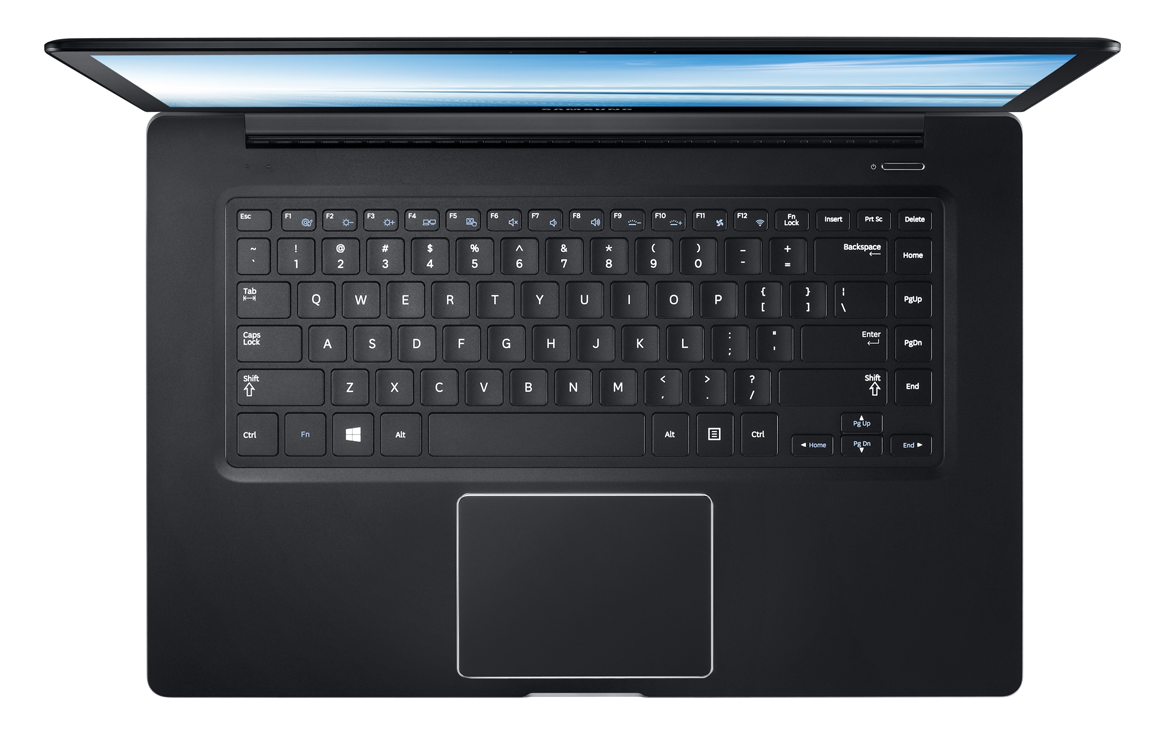
Samsung’s machine does have other positive attributes. Its backlit, island-style keyboard feels awesome under the fingertips, delivering just the right tactile feedback. And its oversized trackpad is exceedingly responsive and accurate. And despite its slim proportions, Samsung’s engineers managed to squeeze in two USB 3.0 ports, one USB 2.0 port, a full-sized HDMI out, gigabit Ethernet (you’ll need to use the provided dongle), an SD card slot, and even an analog video output (although you’ll need to purchase a VGA adapter to use it).
Performance and final thoughts
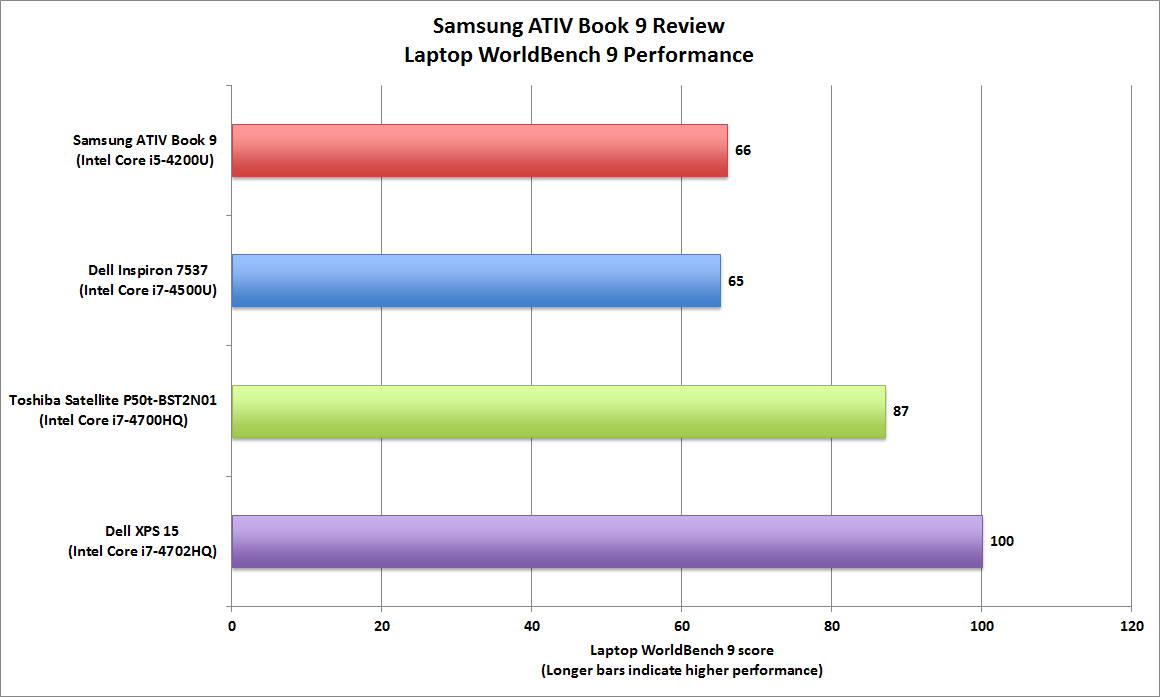
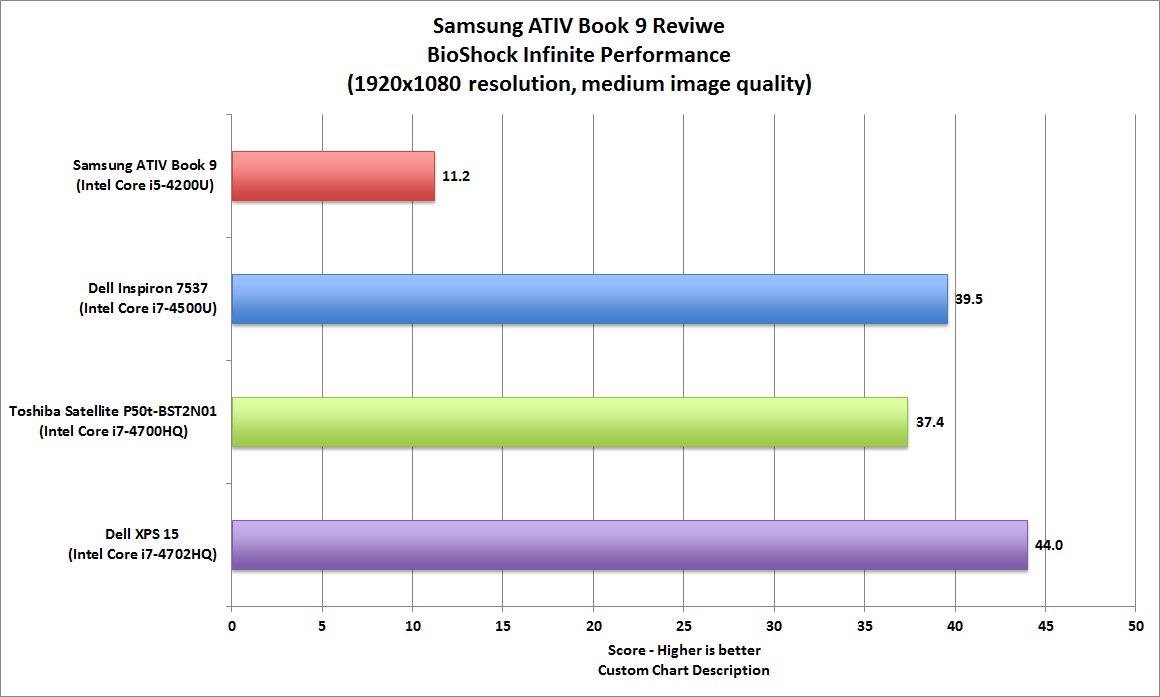
In terms of benchmarks, the ATIV Book 9 squeaked past Dell’s Inspiron 7537 in our Laptop WorldBench 9 benchmark suite. This can be attributed to the presence of an SSD in the Samsung versus the mechanical hard drive in Dell’s machine. PCMark 8—which is one component in that suite—is particularly sensitive to storage performance. But Samsung’s reliance on integrated graphics resulted in its getting crushed in our gaming benchmarks. This is clearly not the machine to buy if you intend to play AAA games. Battery life, on the other hand, is excellent (and would be much lower if it did have an integrated GPU).
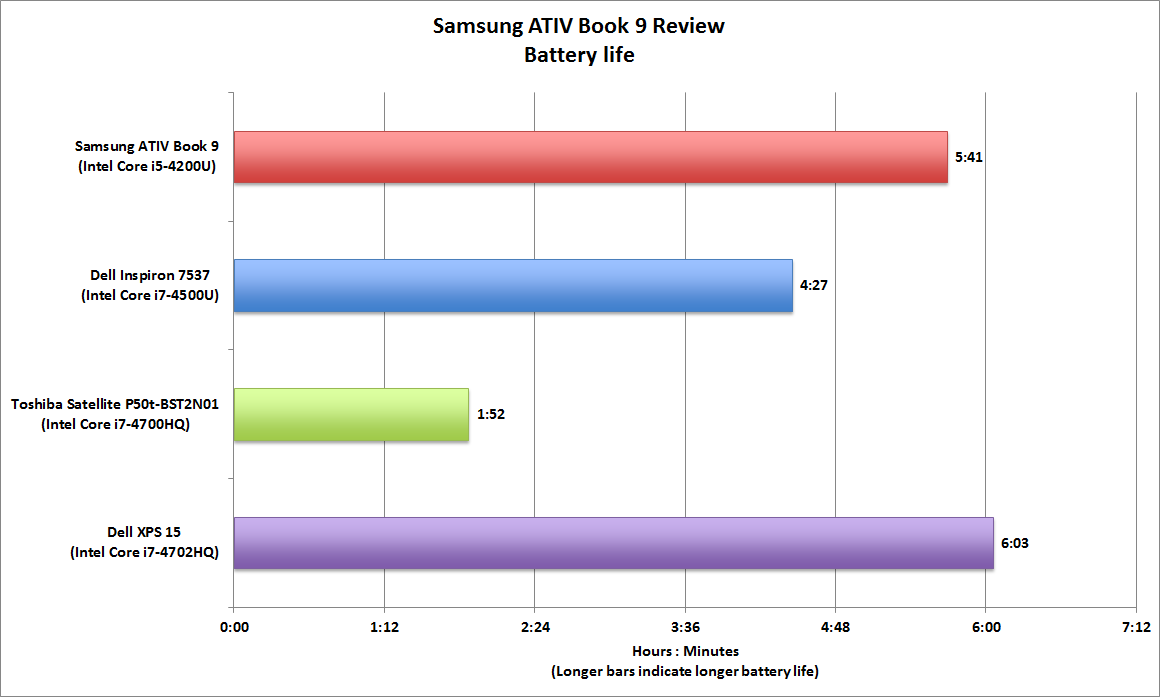
It should come as no surprise that the Toshiba and Dell machines I’m comparing to the ATIV Book 9 ended up with the same 3.5-star score. Each of these machines is compelling—and disappointing—in its own way. The Toshiba wows with its resolution, but it’s a bit ahead of its time on that score. The Dell is a great gaming machine for the price, but its chassis isn’t as strong as it should be.
The Samsung ATIV Book 9 is one of the sexiest laptops to come through the Lab this year, but it's expensive for the processing power, memory, storage, and video resolution it has to offer. If you're passionate about high-quality audio, this laptop's premium price tag is probably justified. Just be sure to install Foobar2000 and its WASAPI component before you plug in your favorite headphones.
Sunday, 13 July 2014
Samsung Vs iPhone

No matter how much we hope and pray, the legal wrangling between Apple and Samsung never seems to end. The latest court battle has Apple seeking up to $2 billion in damages from the Korean manufacturer for infringing on five patents, including tap to search and slide to unlock.
This time around though, Samsung is looking to drag Google engineers into the courtroom to testify about the creation of Android — including, potentially, Andy Rubin. The hope is that their testimony and the evidence they provide would prove once and for all that the mobile operating system was developed independently of iOS and put to bed the back and forth over patent battles.
While Mountain View has successfully stayed above the fray for the most part, it makes sense for Seoul to drag the company into this particular battle. Apple is seeking up to $40 per device sold in royalties — far more than it ever has before.
As part of its counter offensive Samsung is countersuing, claiming that Cupertino stole two of its technologies for use in the iPhone and iPad. Like other cases in the war, this will probably take some time to settle. And jury selection starts this week.
Apple has over 3 million iPhone 5cs collecting dust

Apple’s stockpile of the iPhone 5c has reached over 3 million units, confirming what most already know: it isn’t exactly a hot seller. 2 million units are at Pegatron, the manufacturer of the 5c, with the rest sitting on shelves hoping someone will take them home.
Despite Apple’s record-breaking quarter, the 5c didn’t reach nearly the same amount of numbers that the 5s did. The price of the 5c is most decidedly the deal-breaker, given its high cost for a phone with less than stellar tech specs.
With rumors of Apple increasing the screen size of their next crop of iPhones to 4.5” or 4.7”, and even murmurs of a 5.5” Apple phablet, it doesn’t look good for the future of the iPhone 5c. Expect Apple to liquidate their current stock of 5cs at a reduced price and not bring back the plastic iPhone back.
Curved screens not weird enough for you? Samsung plans a three-sided phone display

Leave it to Samsung to once again make us say “huh?” when it comes to new smartphone screen technology.
The Korean electronics giant is reportedly developing a three-sided smartphone screen — so it will cover the front and two sides of a phone — according to a Bloomberg report.
A source tells the news agency that Samsung is working on adapting its “Youm” technology, which is used in its curved Galaxy Round phone, to display messages on the side displays. So, for example, the phone could display incoming notifications on the sides, or the title of the song it’s playing, without needed to wake up the display.
iPhone 5s fingerprint sensor called Touch ID, recognizes your thumb on the Home button: here’s how it works and what it does

Apple’s brand-new iPhone 5s isn’t dramatically different from last year’s model, but it has at least one major addition: a “Touch ID” sensor. Us human beings are calling it a fingerprint sensor, and it’s built into the phone’s main Home button below the screen. Apple’s Phil Schiller says, “It reads your fingerprint at an entirely new level” — it’s 170 microns in thickness with 500 ppi resolution. According to Cupertino, it “scans sub-epidermal skin layers,” and can read 360 degrees. As expected, the sensor is actually part of the Home button, making it less of a button and more of a…well, sensor. Using Touch ID, users can authorize purchases in iTunes, the App Store, or in iBooks by simply using their thumbprint (starting in iOS 7, of course). Pretty neat / scary!
As rumored, the sensor uses a laser cut sapphire crystal cover; it retains a tactile input for those wary of the sensor wearing down after lengthy use. The sapphire crystal, acting as a lens, takes a highly detailed image of your fingerprint, which Apple says is “never stored on Apple servers or backed up to iCloud.” According to Apple’s official PR on the new phone, Touch ID’s fingerprint info is “encrypted and stored securely in the Secure Enclave inside the A7 chip” (the A7 chip is the new processor at the heart of the 5s). Apple hasn’t made clear whether Touch ID allows for multiple users on a single iPhone or not, nor has the company said whether you could turn off fingerprint authentication (though we have to presume the answer is yes given previous authentication standards on the iPhone).
Apple iPhone 4S now free on-contract in wake of iPhone 5c reveal

Just yesterday, the venerable iPhone 4S sat as Apple’s mid-tier smartphone, but now it’s moving into a new role as the company’s go-to option for budget seekers: an 8GB iPhone 4S is now free on-contract. The news follows this morning’s introduction of the iPhone 5c ($99), which brings a dash of color to Apple’s mid-range and replaces the iPhone 5.
A similar discount is also in effect for the unlocked iPhone 4S, which now sells for $450 outright for the new 8GB model. Alongside the price drop, the continuation of the iPhone 4S brings a reprieve for Apple’s legacy 30-pin dock connector, which is an important consideration for compatibility-minded folks. Naturally, you won’t find all the latest goodies — or even LTE — in this 2-year old smartphone, but living behind the curve sure is easier on the wall.
iPhone 5c and 5s coming to 9 countries, including the US and China on September 20th

pple’s new iPhone 5c and iPhone 5s are now in the wild, and here’s how you’ll be able to grab one. Both will arrive on September 20th in the US, Australia, Canada, China, France, Germany, Japan, Singapore and the UK, with iPhone 5c pre-orders starting September 13th. That marks the first time China will get the iPhone at launch, and NTT DoCoMo will get it in Japan for the first time. By December, Apple said the phones will be available in over 100 countries.
Stateside, a basic 16GB iPhone 5s model will run $199 for the 16GB version, $299 for 32GB and $399 for 64GB on a two year contract. The iPhone 5c will cost $99 for the 16GB model and $199 for the 32GB model. You’ll also be able to grab them at those prices from AT&T, Sprint and Verizon, while an unlocked, contract free iPhone 5c will be available through T-Mobile for $549 (16GB) and $649 (32GB).
Apple iPhone 5c hands-on

Wait, Apple unveiled two completely different iPhones on the same day? In the same year? The answer is a resounding yes, though we have a feeling Tim Cook’s little surprise wasn’t the most well-kept secret in Cupertino. Known as the iPhone 5c, this is the less expensive (yet vibrant) sidekick to the 5s, and we’ve been playing with the device here at Apple HQ.
The device will be available for pre-order starting September 13th, and can be picked up at stores a week later on September 20th. You can get your choice of five colors, and the 16GB version will be offered for $99 on contract, while the 32GB tacks on an extra $100 to the total; if contracts aren’t your thing, the off-contract costs are $549 and $649, respectively. We’ll be bringing you a full helping of pics, vids and our initial impressions as we go along, so keep your eyes peeled here!
New iPhones means new accessories: see the options right here

Welcome to the drama, the dilemmas, the sheer disbelief involved in picking accessories to go with your new iPhone. (Yes, an official 30-pin to Lightning adapter really costs that much). We can’t promise to make the choices easy, but we can at least give you a glimpse of some of the bumpers and functional extras that Apple has revealed today, and link you up to the relevant pages on Apple’s store (see the Source links below).
Starting with the iPhone 5c, it’s “unapologetically” plastic to start with, of course, but you can give it extra protection with an additional, colorful mesh-style plastic case. This costs $29 and comes in the same five colors as the phone itself, so you can either match the phone or mix it up with a secondary color. There’s also a black option if you want to tone things down a bit. One more thing: the iPhone 5c gets it’s own Lightning dock, which comes in plain white and costs $29.
iPhone more vulnerable than Android, BB, and WP combined

Security is always a hot topic with mobile platforms, but most of the time the focus is on Android and the malware issues that exist for the platform if you don’t use the Google Play Store. But, a new study shows that maybe we should pay more attention to the iPhone’s security issues, because the study claims that the iPhone has more security vulnerabilities than Android, BlackBerry, and Windows Phone combined.
The study was conducted by SourceFire, which analyzed vulnerabilities from the Common Vulnerabilities and Exposures (CVE) data and National Vulnerability Database (NVD) over the past 25 years. Yves Younan, senior research engineer at SourceFire’s Vulnerabilities Research Team and author of the report, said that the results were “surprising”, especially since despite Apple constantly releasing security fixes with each update, CVE continue to grow year over year.
Samsung Galaxy S 4 wireless charging pad and S Health scale hands-on

No phone launch is complete without a few accessories added to the mix. Samsung had a whole bunch to announce alongside its Galaxy S 4, but only a few were on hand to check out up close and personal. We did, however, find a nice surprise hiding under those glossy white table covers — a wireless charging pad. Yes, it turns out the the GS 4 does in fact have Qi wireless charging capabilities.
Provided its available in your region and your carrier chooses to support it. The charging pad itself has a glossy plastic base that matches the phone, but there’s a nice rubbery gray top that keeps the handset from sliding around too much while it’s juicing up....................
Subscribe to:
Posts (Atom)